CreatorGuide
How to Sell Digital Downloads on Teachable (2026, Tested)
Step-by-step: we created a digital download in Teachable's 5-step wizard on a Builder trial. File vs link delivery, tax categories, the payments gate, and fees.

If you want to sell digital downloads on Teachable—templates, ebooks, worksheets, audio files, or a link to a Notion or Canva asset—the product itself takes about five minutes to create. We did it on a Builder free trial on November 18, 2026, using a realistic example: a “Freelance Client Dashboard Notion Template” sold as a link. This guide walks through each screen of Teachable’s five-step digital download wizard with our screenshots, explains the two delivery methods and the tax category you must choose, and covers the one step that is not quick: Teachable will not let you set a price until payments onboarding is complete. We also show how Teachable’s plan fees change the economics of low-priced downloads, which matters more for a $15 template than for a $300 course.
What you can sell as a Teachable digital download
Teachable’s digital downloads page says you can sell ebooks, PDFs, templates, audio files, images, spreadsheets, and similar files, either uploaded directly or delivered by linking out to tools such as Canva, Google Drive, or Notion. It also positions downloads in three ways: as standalone products, as low-cost upsells or order bumps alongside other products, and as free lead magnets that collect sign-ups for a course.
In the wizard itself, Teachable asks you to choose between two delivery types:
- Downloadable file: the buyer downloads a file you uploaded to Teachable.
- Link: Teachable delivers “exclusive content through secure redirect links”—the buyer clicks through to a URL you provide, such as a Notion template’s duplicate page or a Canva share link.
A link is the better choice when the product lives in another app and is updated over time, like a Notion template. A file is better when the buyer should own a fixed copy, like a PDF workbook.
Step 1: Start a new digital download
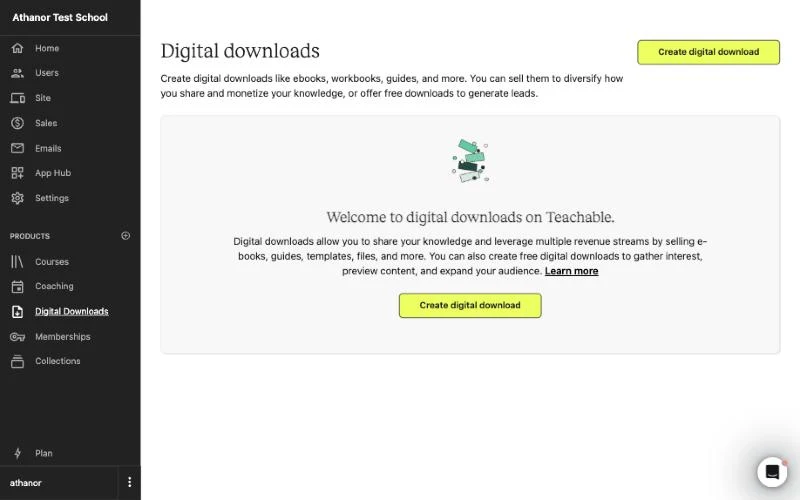
From the admin sidebar, choose Products → Digital Downloads and click “Create digital download”. On an empty school, the page explains that downloads can be sold or offered free to generate leads. Before you click, have three things ready: the final file or the share link, a one-sentence description of what the buyer gets, and a 16:9 cover image. With those prepared, the wizard takes only a few minutes, and you will not leave a half-finished product sitting in your catalog.
Step 2: Choose file or link delivery
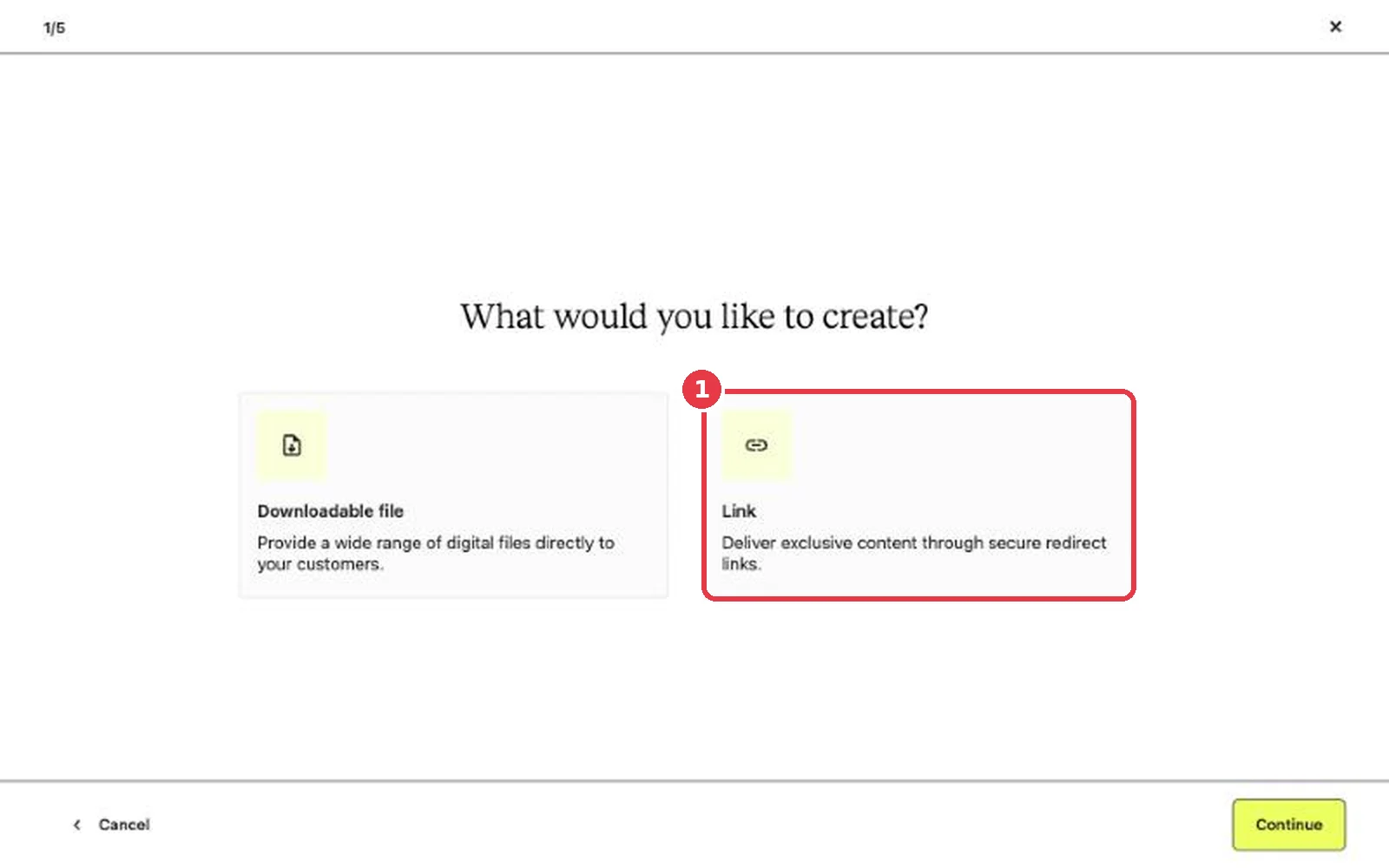
The first screen of the wizard (1 of 5) asks what you want to create. We chose Link because our template lives in Notion and we want buyers to always get the latest version without re-uploading a file after every edit. If you later change your mind, the content step still offers both File upload and Redirect to URL, so this first choice is not permanent.
Step 3: Add the title, description, and tax category
Screen 2 asks for a title, a description, and a category. The category is not cosmetic: Teachable notes that it “helps determine the correct tax amount in your jurisdiction.” The list had ten options, from eBook and Audiobook to “Digitally-editable templates, worksheets, or workbooks”, “Static files, templates, or patterns”, information guides, art and photography, multimedia, code snippets, design tools, and 2D or 3D design files. We chose the editable-templates category for a Notion template.
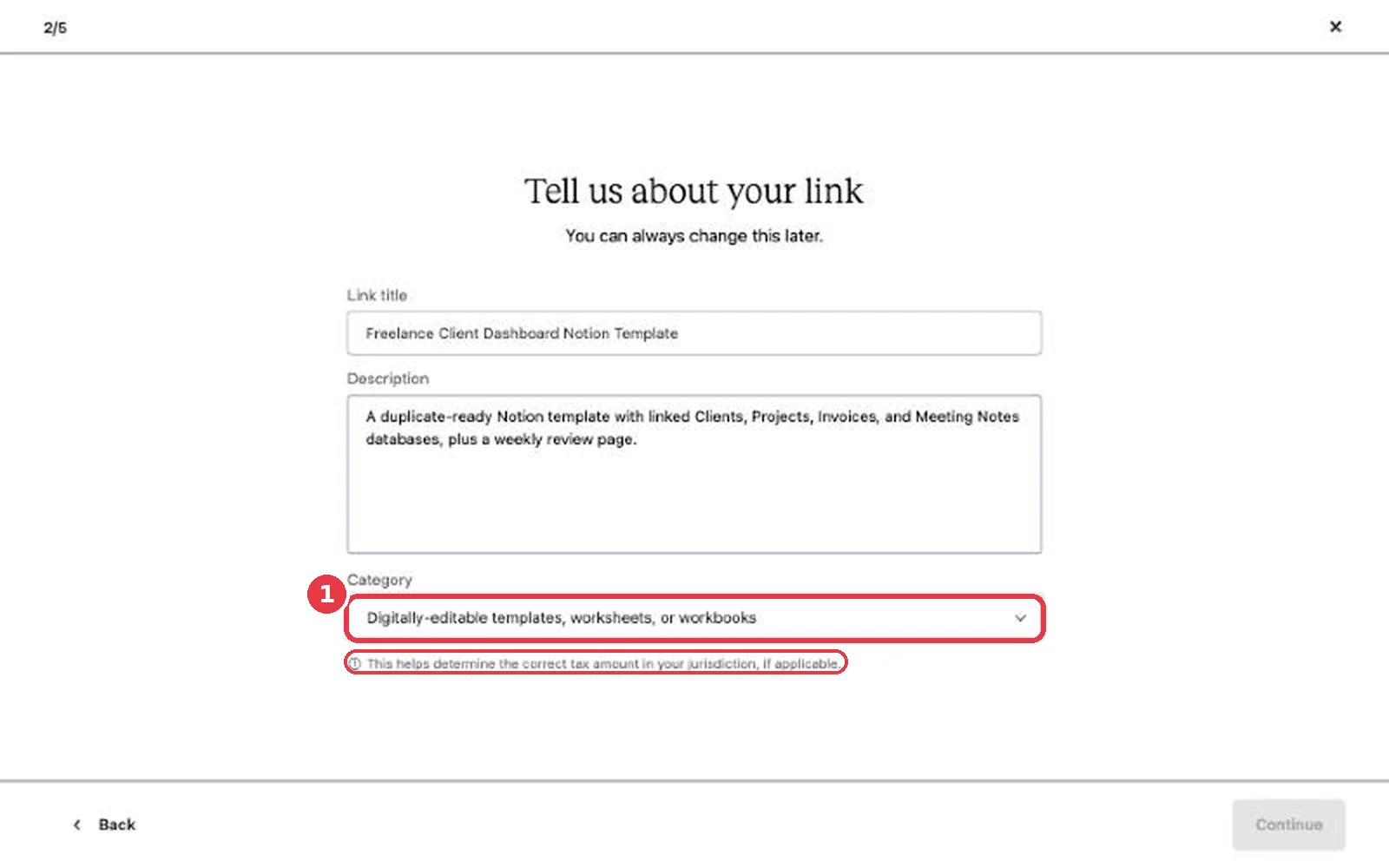
Pick the category that genuinely describes the product. Because Teachable handles sales tax and VAT on its own payments, a mismatched category can mean the wrong tax treatment for buyers.
Step 4: Add a thumbnail, or skip it for now
Screen 3 asks for a thumbnail, which Teachable shows at checkout and throughout the member experience. It recommends a 16:9 image at 1024×576. You can choose “I don’t have one” and add it later, which is what we did. Add one before publishing; a blank thumbnail looks unfinished on the product listing and at checkout. For templates, a cropped screenshot of the template itself usually works better than a decorative graphic, because it shows buyers exactly what they will receive.
Step 5: Add your content
Screen 4 is where the product is delivered. With Link selected, the “Redirect to URL” option is active and asks for a required URL plus optional CTA button text—the label buyers see on the button that takes them to your content. We entered a placeholder Notion URL and “Duplicate the template”. Choosing “File upload” here switches to an upload area instead.
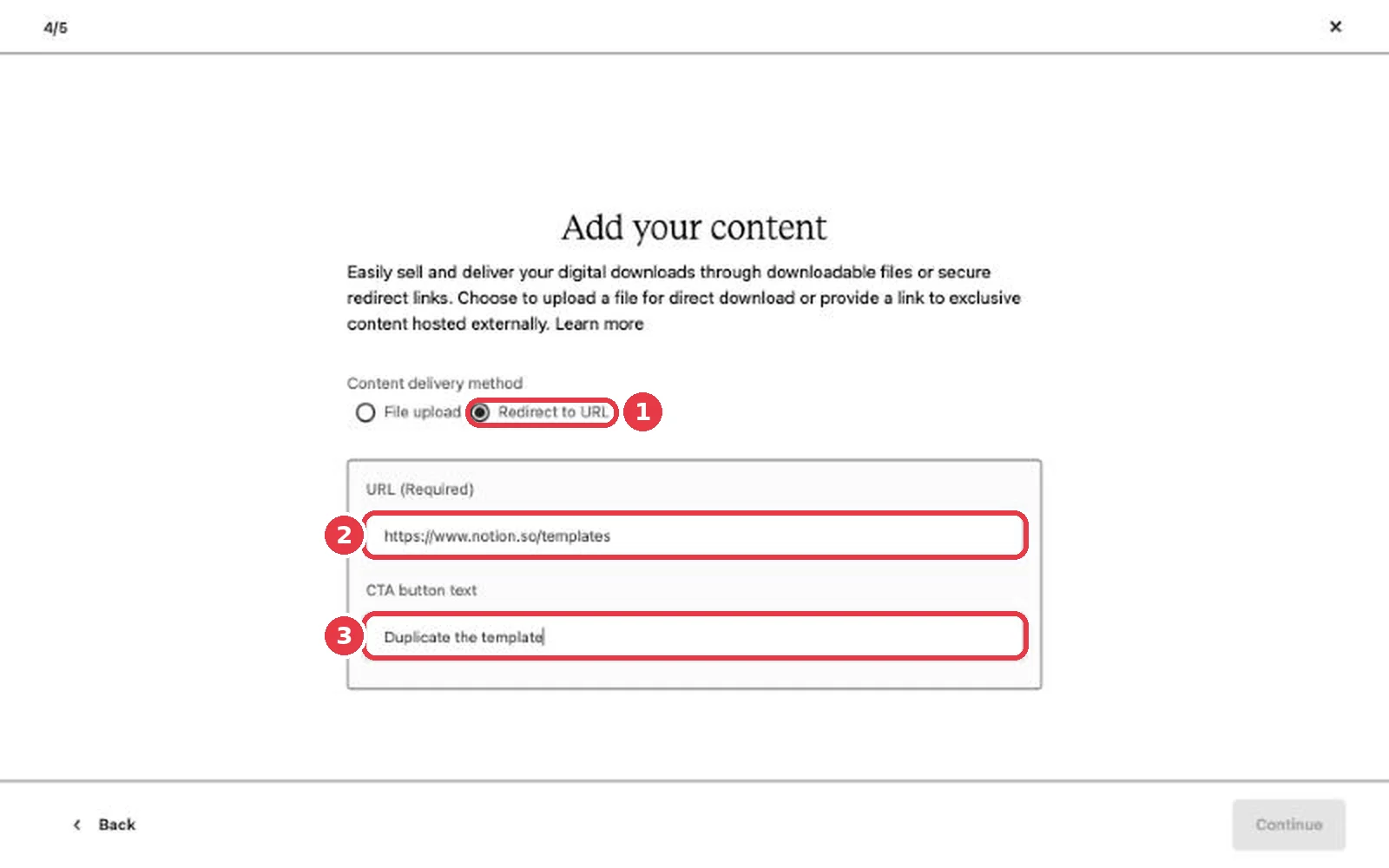
For link delivery, make sure the destination itself is protected appropriately. A redirect link only controls how buyers reach the URL; if the Notion page is public and the link gets shared, anyone with the link can open it.
Step 6: Review the product card
The final screen (5 of 5) shows the product card buyers will see on your school’s all-products page, followed by a short “What’s next” list: revisit skipped steps, customize the sales page, and publish.
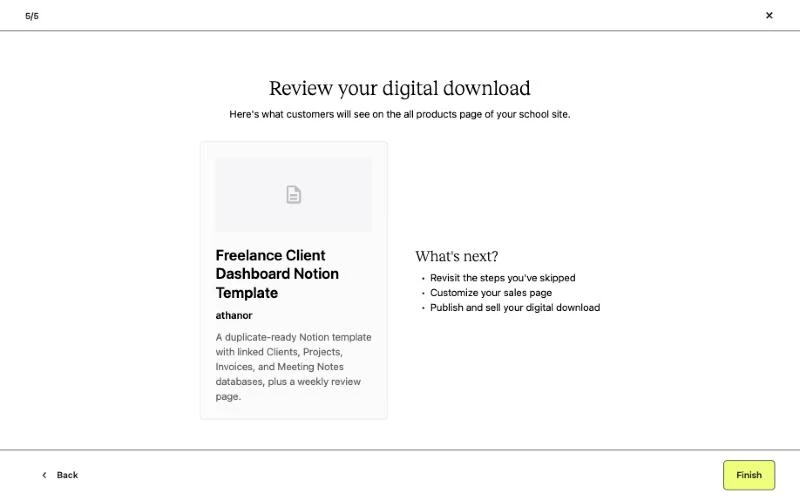
Notice what did not happen: there was no pricing screen. The wizard’s address jumped from step 4 straight to the review step. Because our trial school had not completed payments onboarding, Teachable skipped pricing entirely.
Step 7: Set up Teachable Payments, then price the download
After clicking Finish, the download opened in its own admin area with Information, Pages, Pricing, Order Bumps, Coupons, and Students sections, marked Unpublished.
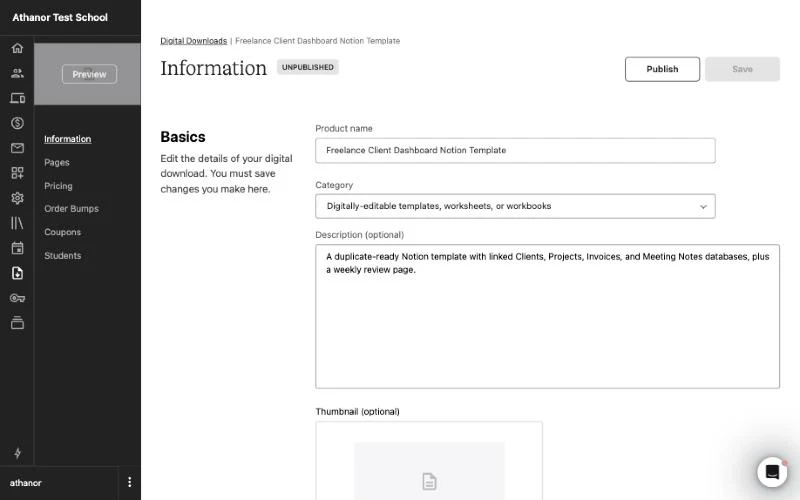
To charge for it, you first need Teachable Payments. Under Sales → Payment settings, Teachable asks for the country where your business or earnings are based and then sends you to Stripe onboarding. Until that is done, pricing is locked across the school; in our trial the same message also blocked course pricing and memberships.
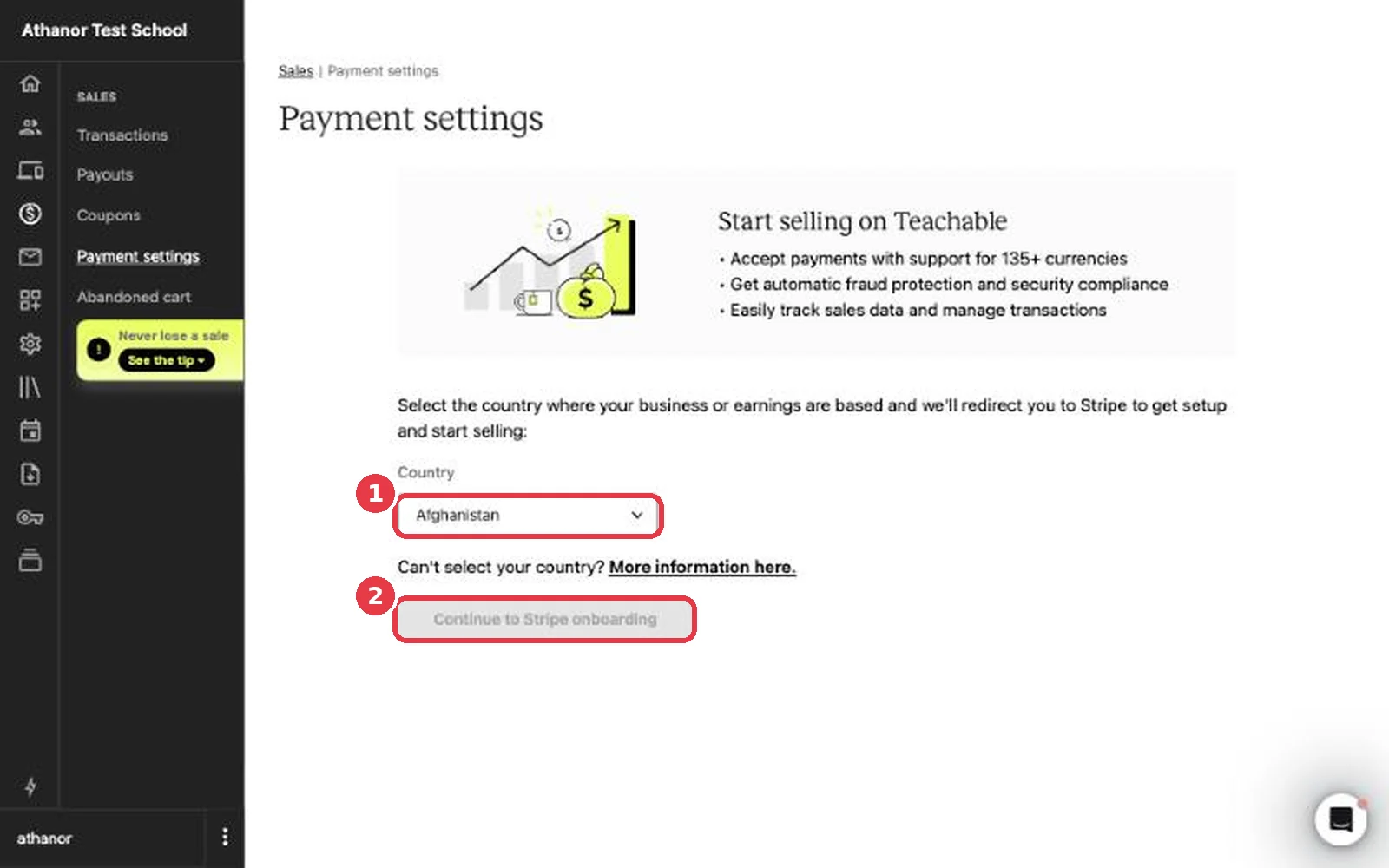
Stripe onboarding typically requires identity and bank details, so start it early in your trial. Once it is complete, set the price on the Pricing tab, add coupons or order bumps if you want them, publish the product, and turn on its visibility.
Teachable fees for digital downloads
Every download you sell counts as a product, and the plan you choose decides both how many products you can publish and how much Teachable keeps. On Teachable’s public pricing page, checked November 18, 2026:
| Plan | Monthly / billed annually | Products | Teachable transaction fee |
|---|---|---|---|
| Starter | $39 / $29 per month | 5 | 7.5% |
| Builder | $89 / $69 per month | 10 | 0% |
| Growth | $189 / $139 per month | 50 | 0% |
Payment processing fees apply on top of these. The Starter fee is the one to watch for downloads, because downloads are usually cheap and numerous. A $15 template on Starter pays $1.13 to Teachable before processing; 100 sales a month means about $113 in Teachable fees, which is more than the $50 monthly price difference between Starter and Builder. The product cap matters too: a creator with a course, a coaching offer, and four templates already needs six products, one more than Starter allows. Our Teachable fees explained guide shows the full break-even math.
Free downloads as lead magnets
Teachable’s digital downloads page also promotes offering downloads for free to attract new students. A free checklist or template brings people into the same school where you later sell the course, so your first lead magnet does not need a separate landing-page tool. We did not test the free-enrollment flow in our trial, so confirm during your own trial exactly which details a free download collects and how those students appear in your email tools. Our Teachable course launch checklist covers how to sequence a free download before a paid launch.
Start a Teachable trial and create your first download
Is Teachable the right place to sell downloads?
Teachable makes the most sense for downloads when they sit next to a course, coaching, or membership: a template that complements a course, a workbook sold as an order bump, or a free guide that feeds a launch. Everything shares one checkout, one student account, and one set of tax handling. If you only sell downloads and have no plans for courses, a simpler storefront may be cheaper. Compare the options in our best Teachable alternatives guide before committing to a plan sized for courses.
Related Teachable guides: Our hands-on walkthrough of creating a course on Teachable, what the Teachable free trial includes, our Teachable review for course creators and Teachable pricing by plan.
FAQ
Can you sell PDFs on Teachable?
Yes. Choose “Downloadable file” in the first step of the digital download wizard and upload the PDF in the content step. Teachable’s digital downloads page lists PDFs alongside MP3s, images, spreadsheets, and other formats. You can also sell a PDF as part of a course or bundle.
Can I sell a Notion or Canva template on Teachable?
Yes. Choose “Link” in the first step, enter the template’s share or duplicate URL in the content step, and write CTA button text such as “Duplicate the template”. Buyers are redirected to that URL after purchase. Make sure the template page itself is set up for duplication and not freely discoverable.
Why can’t I set a price on my Teachable digital download?
In our trial, the wizard skipped pricing and the Pricing tab stayed locked because Teachable Payments was not set up. Go to Sales → Payment settings, choose your business country, and complete Stripe onboarding. After that, return to the download’s Pricing tab to add a price.
Do digital downloads count toward Teachable’s product limit?
Yes. Teachable’s plans limit the number of products—5 on Starter, 10 on Builder, and 50 on Growth according to the public pricing page—and each download is a product. Courses, coaching, and downloads all draw from the same allowance, so count every planned offer before choosing a plan.
Can I give a digital download away for free on Teachable?
Yes. Teachable’s digital downloads page promotes offering downloads for free as a lead magnet to attract new students to your school. We did not test the free flow ourselves, so verify what information it collects during your trial. If you expect many free sign-ups, check your plan’s student limits, which the in-app plans page lists separately from products.